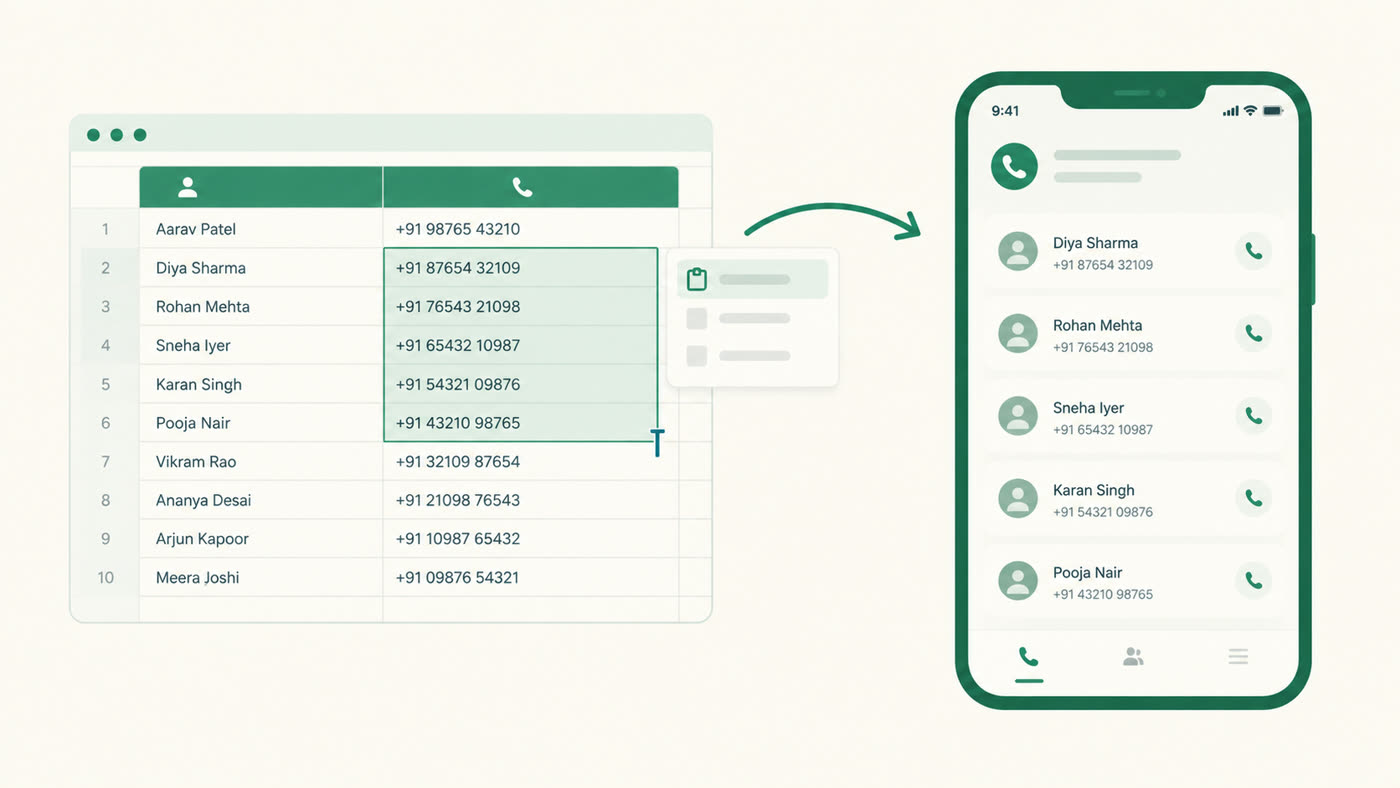
Almost nobody starting a new calling day is building their list from scratch inside a purpose-made import wizard. They have a Google Sheet: a broker handed it over, a lead-gen vendor emailed it, a CRM spat it out as an export, a colleague forwarded it from three roles ago. The list already exists somewhere as rows of names and numbers. The real job isn't "import a lead list," it's "get the list I already have onto my phone without losing or corrupting anything on the way." That's the thing worth designing around, and it's also the thing that quietly breaks more often than people expect.
The one fix that matters most: format the phone column as Plain Text first
Here's the failure mode that catches almost everyone at least once. Google Sheets tries to be helpful with anything that looks like a number, including phone numbers. Paste or type a long digit string into a column Sheets thinks is numeric, and it will happily reformat it for you. A leading +91 can get stripped, a leading 0 can vanish, and a long enough string can even get mangled into scientific notation like 9.19043E+11. None of this throws an error. Your sheet looks fine. The number underneath it is now wrong, and you won't find out until a call goes to a dead line or a completely different person.
The fix takes ten seconds and has to happen before you type or paste the numbers in, not after:
- Select the entire phone-number column (click the column letter, not just the cells with data).
- Go to Format → Number → Plain text.
- Then paste or type your numbers.
If you've already pasted numbers and some of them look suspicious (missing digits, a stray E+, a country code that vanished), you have two options: reformat the column to Plain text and retype the affected cells, or prefix an individual cell with a leading apostrophe ('9876543210) to force Sheets to treat just that entry as text. The column-first approach is more reliable when you're building a list from scratch; the apostrophe trick is a quick patch for a handful of already-broken cells.
Keep the sheet itself boring
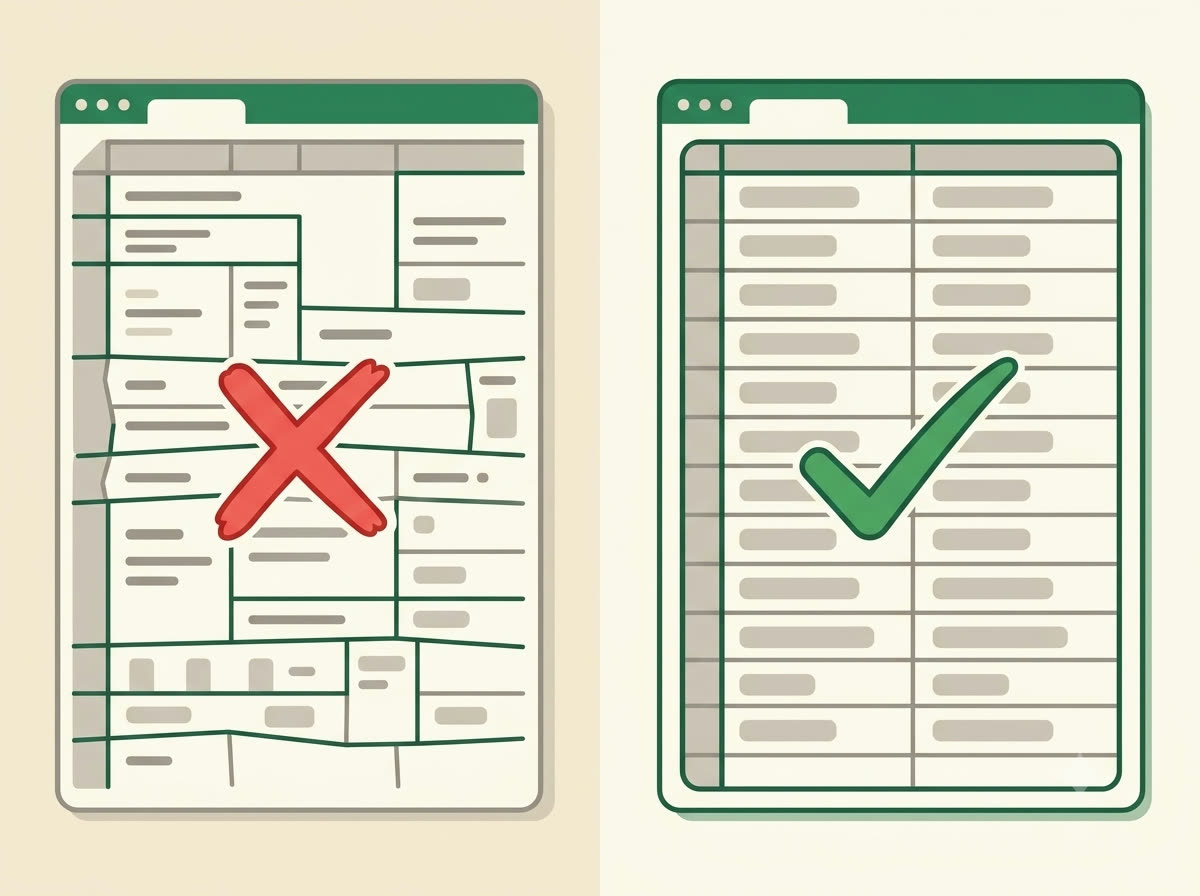
A lead list doesn't need to be clever, it needs to survive a copy-paste. The structure that holds up:
- Two columns: Name, then Phone Number. Nothing else needs to be there for a straightforward paste.
- One header row. Not two, not a merged title banner across the top, just a single row of column labels.
- No merged cells anywhere in the range. A merged cell copies as one blob of text spanning what should be separate rows, and it's one of the most common reasons a paste comes out looking scrambled.
- No blank rows in the middle of the list. A gap left over from deleting a row earlier can split what should be one continuous paste into two, or leave a stray empty entry in the queue.
- One phone number per row. If a contact has two numbers, that's two rows, not one cell with a number crammed in after a comma or a slash.
Pick one number format and stick to it for the whole list
Mixing formats row to row (some numbers as +919876543210, others as 9876543210, others with spaces or dashes like 98765 43210) is asking for trouble even after the Plain Text fix. Decide once, for the whole sheet: either every number carries the country code, or every number is the plain 10-digit local form. Consistency here matters more than which format you pick.
Clean before you export, not after
Two small Sheets habits catch most of what's left:
- Remove duplicates before you paste the list anywhere. Select your range, then Data → Data cleanup → Remove duplicates. A lead that appears twice in your source (common with combined lists from more than one source) means two entries in your call queue and one annoyed callback the second time it rings.
- Wrap a messy name or number column in
=TRIM()if the list was copy-pasted from somewhere with inconsistent spacing: a PDF directory, a scanned table, an old export.=TRIM(A2)in a helper column strips leading, trailing and repeated internal spaces that are invisible until they cause a mismatch somewhere downstream.
The single most common reason a pasted list "doesn't work right" isn't the app on the other end. It's a phone-number column Sheets quietly reformatted before you ever hit copy.
What actually happens on the Cadence side
Once the sheet itself is clean, the import is as plain as the sheet: open Cadence with an empty call list and you'll see "Your call list is empty — Paste a Name + Number list from Google Sheets, then work through it call after call, logging outcomes as you go," with a Paste from Google Sheets button front and centre, and an Add a contact manually option underneath for one-off entries. Select your Name + Number range in Sheets, copy it, tap Paste from Google Sheets, and the queue builds in exactly the order you pasted it: ten contacts pasted in becomes ten contacts in queue, in order, ready to dial straight down the list.
There's no column-mapping step to get wrong and nothing else happening behind the scenes. That's exactly why getting the sheet right first is worth the two minutes it takes.
Clean sheet in, clean queue out. If you want to see the rest of the loop (dialing, logging an outcome, and where callbacks land), download Cadence and try it on today's list, or check current pricing first.
Back to blog